
Microsoft Word is a leading word processing application, widely used for creating documents ranging from simple letters to complex reports. Its user interface features a Ribbon at the top of the window, which organizes tools and features into specific tabs such as Home, Insert, and Layout.
Home Tab: Contains essential text formatting tools like font styles, sizes, and paragraph alignment.
Insert Tab: Allows users to add images, tables, charts, and other elements to enhance documents.
Page Layout Tab: Enables adjustments to margins, page orientation, and overall document formatting.


Understanding this layout is crucial for efficiently locating the tools you need, streamlining your workflow, a
Creating New Document
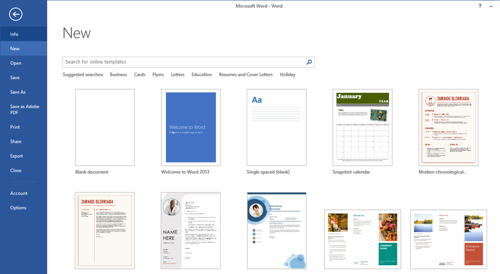
To start a new document in Microsoft Word, you can click on File and select New, or simply use the keyboard shortcut Ctrl + N. This action opens a blank document or allows you to choose from various templates, making it easy to begin your writing.

Saving Your Work
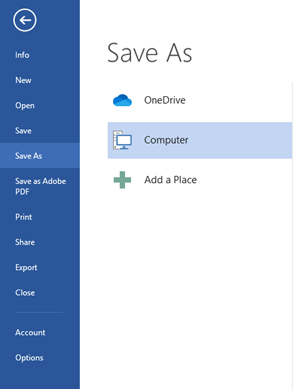
To save your document, navigate to File > Save As. Here, you can choose the location on your computer where you want to store the file and assign it a name. For quick saving, use the shortcut Ctrl + S, which saves the current document in its existing location and format.

File Formats
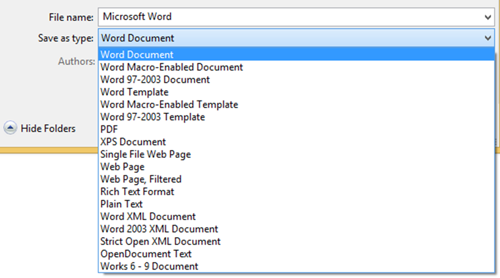
It's essential to understand the different file formats available in Word. The default format is .docx, which is compatible with most Word versions. For documents you want to share without allowing edits, consider saving them as .pdf. This format preserves the layout and design, making it ideal for official submissions and professional sharing. Familiarizing yourself with these formats will help ensure your documents are appropriately prepared for various purposes.

Microsoft Word offers various tools to format text effectively, making your documents clear and visually appealing. Here’s an overview of font styles and paragraph formatting.
Font Styles
In the Home tab, you can easily change font styles:
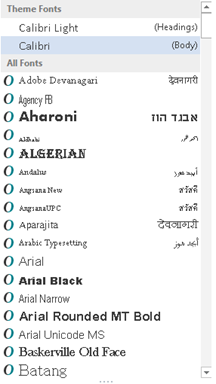
Change Font Style: Select the text to modify and choose a different font from the dropdown menu in the Font group.

Adjust Font Size: Highlight your text and select a size from the dropdown. You can also use shortcuts:
Increase Font Size: Ctrl + Shift + >
Decrease Font Size: Ctrl + Shift + <


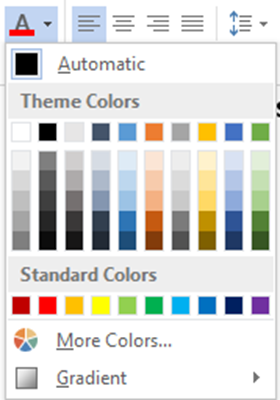
Change Font Color: Select the text and click the font color button (an 'A' with a color bar) to pick a new color.

Highlighting Text: Use these shortcuts to highlight your text:
Bold: Ctrl + B
Italics: Ctrl + I
Underline: Ctrl + U


Improve Your Typing Speed
The quick brown fox jumps over the lazy dog; is an English-language pangram – a sentence that contains all the letters of the alphabet. The phrase is commonly used for touch-typing practice, testing typewriters and computer keyboards, displaying examples of fonts, and other applications involving text where the use of all letters in the alphabet is desired.
In a new file, write the below text 10 times.
The “quick” brown fox jumps over the lazy ‘dog’
Exercise. Write the below text in font – “Time New Roman” and font size 20. Make it Bold.
ohio computer academy
Exercise. Write the below text in all UPPER case letters, use Font Time New Roman, size 16. Make it Bold
Who we are
Exercise. Write the below text as shown. Underline and strikeout some words, use Font Calibri, size 11.
Headquartered in Dublin, OH, Ohio Computer Academy is a global Information Technology (IT) education provider. The company offers diversified IT training for various skill levels from Basics Essentials to Advanced. It provides out-of-the-box and customized training solutions to Corporates, Colleges, Individuals and working professionals. Having extended our locations at Chennai and Bangalore in India, we are equipped to provide Online aswell as Onsite training at different time zones. Ohio Computer Academy take X0 students and provide them X2 advantage.
Proper paragraph formatting is essential for improving the readability of your documents. This section highlights key formatting options in Microsoft Word.
Alignment
You can align paragraphs using both keyboard shortcuts and the ribbon as follows:
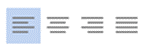
Left Align: Use Ctrl + L to align text to the left margin, or click the Left Align button in the Paragraph group on the Home tab of the ribbon.
Center Align: Press Ctrl + E to center the text on the page, or click the Center Align button in the Paragraph group on the ribbon.
Right Align: Use Ctrl + R to align text to the right margin, or click the Right Align button in the Paragraph group on the ribbon.
Justify: Press Ctrl + J to evenly distribute text across the page, aligning it to both the left and right margins, or click the Justify button in the Paragraph group on the ribbon.

Line Spacing
Adjusting line spacing can significantly impact the document’s clarity:
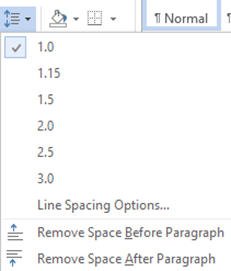
Click the Line and Paragraph Spacing button in the Home tab to choose from various spacing options, including:
1.0 (single)
1.5
2.0 (double)

Indentation
You can easily modify indentation to improve text structure:
Increase Indent: Use Ctrl + M to move the selected paragraph further from the left margin, or click the Increase Indent button in the Paragraph group on the Home tab.
Decrease Indent: Press Ctrl + Shift + M to move the selected paragraph closer to the left margin, or click the Decrease Indent button in the Paragraph group on the ribbon.
By using these formatting options, you can create documents that are not only visually appealing but also easy to read.


Exercise. Make the first heading “ohio computer academy” to upper case and make it centrally aligned. Make other heading like “WHO WE ARE”, OUR MISSION etc. centrally aligned. Align all paragraph justified.
Editing text efficiently is a vital skill in Microsoft Word. This section covers essential editing functions, including cutting, copying, pasting, and using undo/redo features.
Editing Functions
Microsoft Word provides several editing functions that make it easy to manipulate text:
Cut, Copy, and Paste:
Cut: Use Ctrl + X to remove selected text and place it on the clipboard for pasting elsewhere.
Copy: Use Ctrl + C to duplicate selected text to the clipboard without removing it from the original location.
Paste: Use Ctrl + V to paste the text from the clipboard into your document at the cursor’s current position.
These functions allow you to rearrange or duplicate content quickly, enhancing your productivity.
Undo/Redo
Mistakes are a natural part of the editing process. Microsoft Word offers handy shortcuts to help you manage these changes:
Undo: If you make a mistake, you can quickly revert your last action by pressing Ctrl + Z. This function allows you to step back through your changes.
Redo: If you undo an action and change your mind, you can restore it by using Ctrl + Y. This function lets you redo the last action you reversed.
Inserting and customizing tables in Microsoft Word can significantly enhance the organization and presentation of your data. This section covers the basics of inserting tables and customizing them for improved clarity.
Inserting Tables
To organize data effectively in your document:
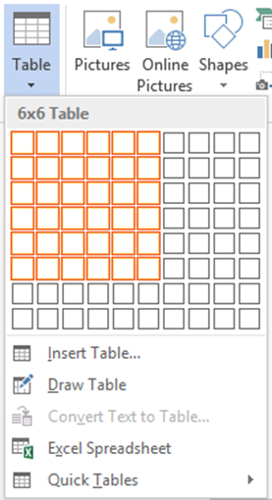
Insert a Table: Navigate to the Insert tab and click on Table. You can then select the desired number of rows and columns by dragging your mouse over the grid or choosing Insert Table for more options. This feature allows you to create a structured layout for your information.

Customization
After inserting a table, you can customize it to better suit your needs:
Merge and Split Cells: Highlight the cells you want to merge, right-click, and select Merge Cells. To split a cell, right-click on it and choose Split Cells. This flexibility helps in organizing your data more effectively.
Adjust Row and Column Sizes: Click and drag the borders of rows or columns to resize them, ensuring your table fits well within your document.
Apply Table Styles: To give your table a polished look, use the Table Design tab that appears when you select your table. Here, you can choose from various styles, colors, and formatting options to enhance the visual appeal of your table.


Adding visual elements to your documents can significantly improve their impact and clarity. This section covers how to insert images and graphics in Microsoft Word and how to make adjustments for optimal presentation.
Inserting Images and Graphics
Visual elements can enhance the attractiveness of your documents:
Visual Elements: To add images, shapes, or SmartArt, go to the Insert tab. From there, you can choose:
Pictures: Upload images from your computer or online sources.
Shapes: Draw geometric shapes or lines to highlight specific areas.
SmartArt: Use SmartArt graphics to create visually appealing diagrams and lists that convey information in a structured way.
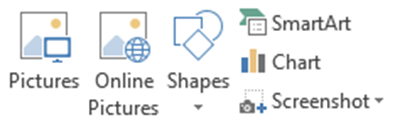

Image Adjustments
Once you've inserted an image or graphic, making adjustments is essential for integration into your document:
Resize Images: To resize an image, click on it to select it. Then, drag the corner handles that appear to adjust its size proportionally, maintaining its aspect ratio. For precise resizing, go to the Format tab, where you can enter specific height and width dimensions in the Size group.
Change Layout Options: After selecting the image, click on the Layout Options icon that appears next to it. This allows you to choose how the image interacts with surrounding text. Options include In Line with Text (treats the image like a text character), Square (text wraps around the image in a square shape), or Tight (text wraps closely around the image’s contours). Select the option that best fits your document layout.
Positioning: To position the image, click and drag it to the desired location on the page. For more precise alignment, access the Format tab and use the Position options. This feature allows you to select specific alignment settings, such as aligning the image to the left, right, or center of the page, ensuring it fits seamlessly within your document's design.


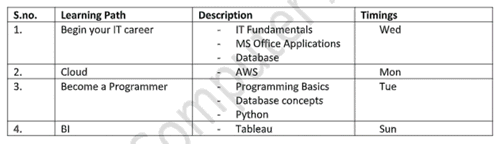
Exercise. Insert a table to display the Learning paths as shown below and practice adding row, column, deleting column or row.
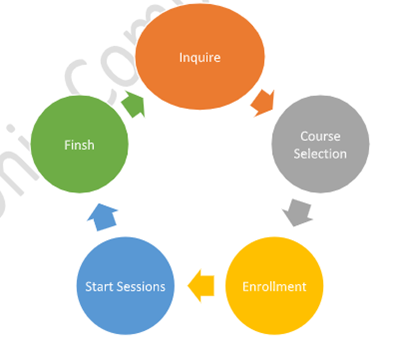
Exercise. Practice SmartArt option to explain the OCA training process.
Headers and footers are essential tools for adding consistent information to your documents. This section explains how to insert and customize headers and footers in Microsoft Word.
Consistency
Headers and footers help maintain a uniform look throughout your document:
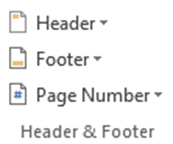
Consistent Information: By using headers and footers, you can easily include elements such as page numbers, document titles, or dates across all pages. This ensures that important information is always visible, enhancing the document's professionalism. To access these options, go to the Insert tab and select Header or Footer.

Customization
You can personalize headers and footers to meet the needs of your document:
Different Headers and Footers: Microsoft Word allows you to set different headers and footers for odd and even pages. This feature is particularly useful for reports and books, where you may want to include different information on each page type.
First Page Options: You can also customize the header and footer for the first page of your document. This is handy for title pages or introductory pages where you might not want the same header or footer as the rest of the document.
List Options
Using lists helps make information easier to digest:
Bulleted Lists: These are ideal for presenting unordered items or points, helping to break up text and improve visual appeal. To create a bulleted list, go to the Home tab and select the bulleted list option.
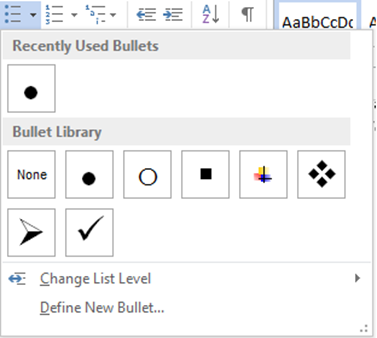

Numbered Lists: Useful for sequences or steps, numbered lists guide readers through processes or indicate rankings. To insert a numbered list, navigate to the Home tab and select the numbered list option.
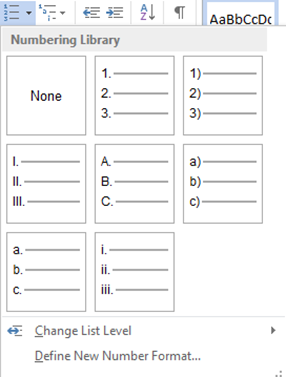

Multilevel Lists
For more complex documents, multilevel lists are beneficial for structuring your content:
Organize Topics and Subtopics: Multilevel lists allow you to define main ideas and their related points clearly, creating a structured outline for your document.
Improve Readability: Presenting information hierarchically helps readers follow along more easily. To create a multilevel list, choose the multilevel list option from the list menu in the Home tab and customize the levels as needed.
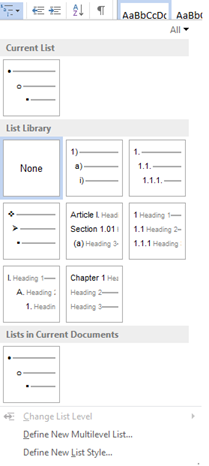

Exercise. Practice Bullets. Display the above services into single point bullets as shown below.
Corporate Training
IT Consulting
Job Screening
IT staffing/Consulting
Project Support
Exercise. Practice Bullets. Display the above learning paths into numbered bullets as shown below. Add sub bullets too.
1. Begin Your IT Career
a. IT Fundamentals
b. MS Office applications
2. Become a Programmer
a. Basics
b. Oracle
c. Python
3. Tableau Analyst
a. Excel
b. Tableau
4. BI Analyst
5. Become a Data Scientist
Styles and themes in Microsoft Word play a crucial role in enhancing the overall appearance and organization of your documents. They provide a consistent look and feel, making your content easier to read and more visually appealing. Here’s how to effectively use styles and themes:
Applying Styles: To apply a style, navigate to the Home tab and locate the Styles gallery. Highlight the text you want to format, then click on the desired style, such as headings or body text. This ensures consistent formatting throughout your document.
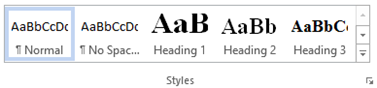

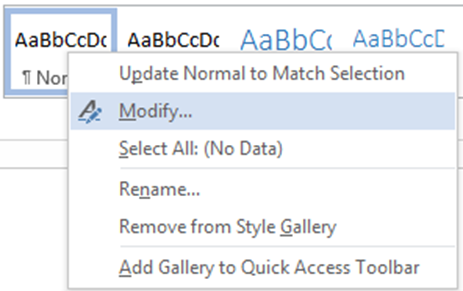
Modifying Styles: If you need to customize a style, right-click on it in the Styles gallery and select Modify. Here, you can adjust the font, size, color, and other formatting options to better fit your document’s theme.

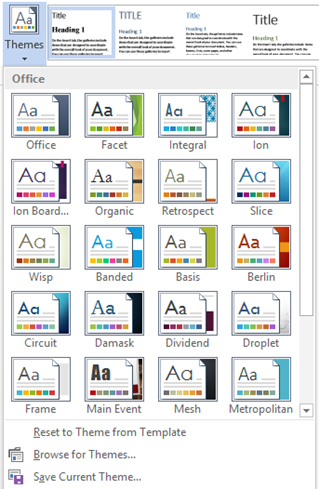
Applying Themes: To change the overall look of your document, go to the Design tab and click on the Themes button. Choose from various predefined themes that alter colors, fonts, and effects for a cohesive design. This can dramatically improve the visual appeal and professionalism of your document.

Understanding document orientation is essential for creating professional and visually appealing documents in Microsoft Word. This section will help you navigate orientation options and their impact on document layout.
Orientation Options
Microsoft Word offers two primary orientation settings for your documents:
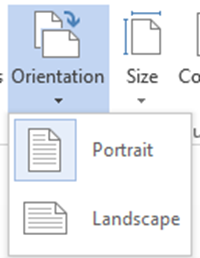
Portrait Orientation: This is the default setting, where the document is taller than it is wide. It is ideal for standard text documents like letters and reports.
Landscape Orientation: In this setting, the document is wider than it is tall. It is useful for presentations, wide tables, and charts.
To change the orientation, navigate to the Layout tab, select Orientation, and choose your preferred option.

Document Layout
Choosing the correct orientation is crucial depending on the type of document you are creating:
Portrait: Best for documents with more text than images, such as essays or articles.
Landscape: Ideal for presentations or documents containing wide tables and graphics, as it provides extra horizontal space. This can improve readability and presentation quality.
Ensuring your document is correctly formatted before printing or sharing is essential. This section covers key print settings in Microsoft Word.
Print Settings
Before printing your document, it’s important to check its layout and print settings:
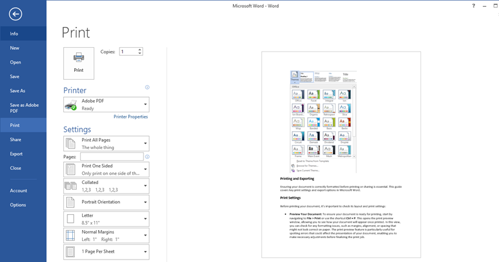
Preview Your Document: To ensure your document is ready for printing, start by navigating to File > Print or use the shortcut Ctrl + P. This opens the print preview window, allowing you to see how your document will appear once printed. In this view, you can check for any formatting issues, such as margins, alignment, or spacing that might not look correct on paper. The print preview feature is particularly useful for spotting errors that could affect the presentation of your document, enabling you to make necessary adjustments before finalizing the print job.
Adjust Settings: Within the print settings, you have several options to customize how your document will print. First, select the printer from the list of available printers connected to your computer. Next, adjust the page orientation—choose between portrait (vertical) or landscape (horizontal)—to fit your content better. You can also specify the number of copies you wish to print. Other settings may allow you to select specific pages to print, adjust paper size, or enable double-sided printing. Reviewing these settings ensures everything is set up correctly, helping to avoid waste and ensuring your document prints as intended.

Familiarizing yourself with keyboard shortcuts can significantly enhance your efficiency while working in Microsoft Word. Here are some essential shortcuts to help streamline your workflow:
Essential Keyboard Shortcuts
Ctrl + B: Bold – Quickly make selected text bold.
Ctrl + I: Italics – Apply italics to selected text for emphasis.
Ctrl + U: Underline – Underline selected text for added focus.
Ctrl + P: Print – Open the print dialog to quickly print your document.
Ctrl + Z: Undo – Revert the last action, helpful for correcting mistakes.
Advantages of Using Shortcuts
Using keyboard shortcuts allows for quicker navigation and editing, making your workflow more efficient. By reducing reliance on the mouse, you can enhance your focus and complete tasks more swiftly.
In this introductory course, you will learn:
Introduction to MS Word
Creating and Saving Documents
Text Formatting
Improve Your Typing Speed
Paragraph Formatting
Basic Editing Tools
Inserting Tables
Inserting Images and Graphics
Using Headers and Footers
Creating Lists
Styles and Theme
Page Orientation
Print Settings
Keyboard Shortcuts
In today’s digital world, proficiency in Microsoft Word is essential for personal and professional tasks. Whether you're a student, a professional, or just interested in enhancing your document creation skills, knowing these fundamentals can boost your confidence and efficiency. In this course, we’ll explore key areas of MS Word to help you build a solid foundation.