What is a Computer?
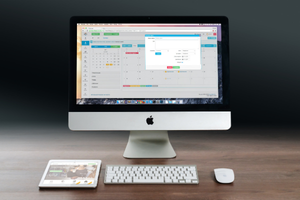
A computer is an electronic device that processes data and performs tasks according to a set of instructions. It can store information, calculate, and communicate with other devices.
Basically, a computer is divided into two main parts:
Hardware, which includes the physical components like the CPU, Keyboard, Monitor and, mouse.
Software, which consists of the programs that tell the hardware what to do. Together, they enable the computer to perform various tasks. Let’s explore each of these in more detail.
The physical components of a computer system that you can touch and see. This includes all the machinery and devices that make up the computer are known as Computer Hardware Components.
Key Components
The key components of computer hardware are
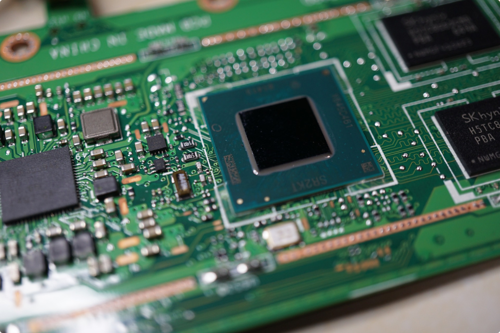
CPU (Central Processing Unit): It is often referred to as the “brain” of the computer, it executes instructions and processes data.
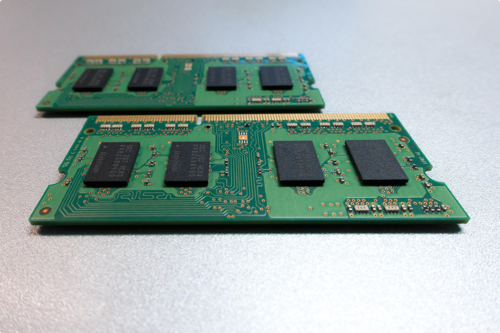
RAM (Random Access Memory): It is a temporary storage that the CPU uses to store data it is currently working on i.e power supply is provided.
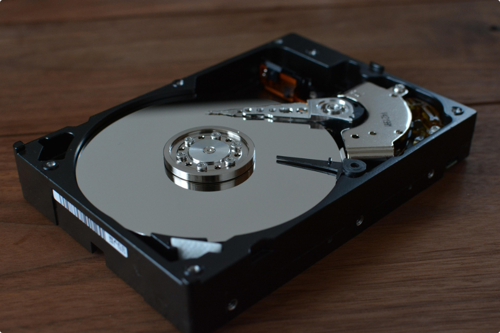
Storage Devices: These include Hard Disk Drives (HDD) and Solid State Drives (SSD), where data is stored permanently.
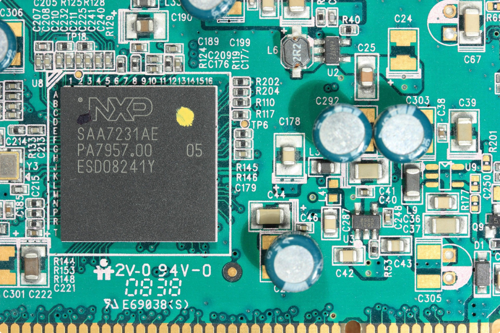
Motherboard: The main circuit board that connects all components, allowing them to communicate.
Software is typically categorized into:
System Software: This includes the operating system (OS) and helps manage the computer’s hardware and overall system functions, ensuring everything runs smoothly.
Application Software: Designed for end users, this software enables them to perform specific tasks, such as word processing, creating spreadsheets, and graphic design.
Hardware: The physical components of a computer system that you can touch and see. This includes all the machinery and devices that make up the computer.
Software: The programs and applications that run on the hardware, providing instructions for the hardware to perform specific tasks.
Hardware and Software Relationship: Hardware and software work together to perform tasks. For example, the CPU (hardware) executes instructions from an application (software) to process data.
No Function without Each Other: Hardware requires software to operate, while software needs hardware to function. For instance, you cannot run a program without the hardware it operates on.
The different types of computers are desktops, laptops, servers, and tablets. They helps you understand their various use cases and functionalities.
An operating system (OS) is software that manages a computer's hardware and software resources. It acts as an intermediary between users and the computer hardware, enabling users to interact with the system and run applications.
Functions of an Operating System
The operating system (OS) is essential for managing hardware and software resources. Key functions include:
Resource Management: The operating system is responsible for allocating memory, managing processing power, and overseeing storage resources in a computer system.
User Interface: The OS allows users to interact with the computer using graphical interfaces or command lines.
Common Operating Systems
The common operating systems are
Windows: A widely used operating system for personal computers and businesses, known for its user-friendly interface and extensive software support.
macOS: An operating system designed for Apple computers, recognized for its stylish design and smooth user experience.
Linux: An open-source operating system that is highly customizable and favored by developers and IT professionals for its flexibility and security.
RAM (Random Access Memory)
Definition: RAM is a type of volatile memory that temporarily stores data and instructions that a computer's CPU is currently using.
Key Features
Volatile: RAM loses all stored data when the power is turned off, making it temporary storage.
Speed: RAM operates much faster than hard drives or SSDs, enabling quick access to data for efficient processing.
Direct Access: RAM allows random access, meaning the CPU can read and write data in any order, enhancing overall performance.
Functionality
Temporary Storage: RAM temporarily holds applications and files, enabling quick access for the CPU.
Multitasking: It supports running multiple applications at the same time without reducing performance.
Performance Impact: If RAM is insufficient, the system may slow down as it uses slower storage options for data retrieval.
ROM (Read-Only Memory)
Definition: ROM is a type of non-volatile memory that permanently stores data and instructions that are critical for booting the computer and performing hardware initialization.
Key Features
Non-volatile: ROM retains data even when the power is turned off, ensuring critical information is preserved.
Read-Only: ROM is primarily designed for reading and typically cannot be modified during normal operation, ensuring critical system instructions remain unchanged.
Functionality
Boot Process: ROM contains firmware like BIOS (Basic Input/Output System) or UEFI (Unified Extensible Firmware Interface), which initializes hardware components and loads the operating system when the computer is powered on.
System Configuration: It stores essential system settings and configuration data required for the proper functioning of hardware, ensuring that the system operates as intended.
Input devices are peripherals that allow users to enter data and commands into a computer. A personal computer can be operated using the mouse, keyboard or a laptop mouse pad.
Keyboard
A keyboard is an input device that allows users to enter text, numbers, and commands into a computer
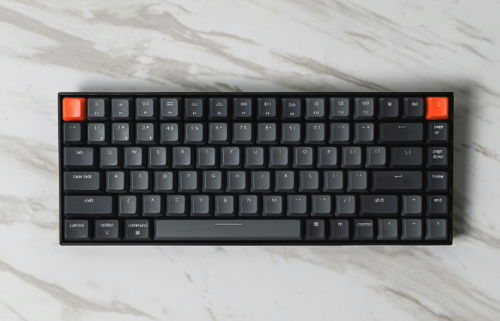
Important Keyboard Keys
Following Keys are most important for day to day operation of a computer. If you are new try these keys:
Keys | Function |
Esc | Interrupts or cancels the current process, closes pop-up windows. Also called the Escape key. |
Caps Lock | Enables continuous typing in uppercase letters. |
Shift | Makes a letter uppercase when pressed. |
Tab | Provides a tab space in the text. |
Ctrl | Modifier key used in conjunction with other keys for special operations (e.g., Ctrl + C for copy). |
Alt | Modifier key usually pressed with another key for special operations (e.g., Alt + Tab to switch apps). |
Num Lock | Activates the numeric keypad for number input. Newer keyboards may not have a separate Num Lock section. |
Spacebar | Adds space between numbers or text. |
Enter | Executes a carriage return, creates a new line in documents, and serves as the OK key to complete actions. |
Function Keys | Labeled F1 through F12, these keys have special functions defined by the operating system or programs and may be combined with Alt or Ctrl. |
Mouse
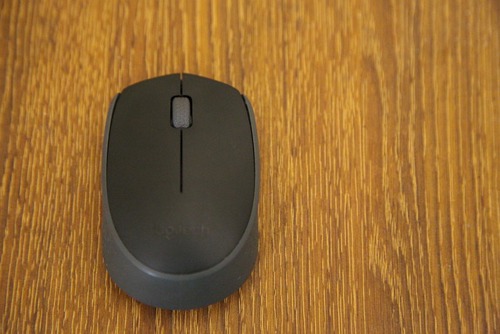
A computer mouse is an input device. Moving a mouse along a flat surface can move the on-screen cursor to different items on the screen. Items can be moved or selected by pressing the mouse buttons (called clicking).

Functionality
Two button allow you to input different messages to your computer depending on Whether you click right button or the left button.
The left button if double click usually used for opening files, where a single click is used
For navigating webpages. The right mouse button is often used to open contextual menus, which are pop-up menus that change depending where you click.
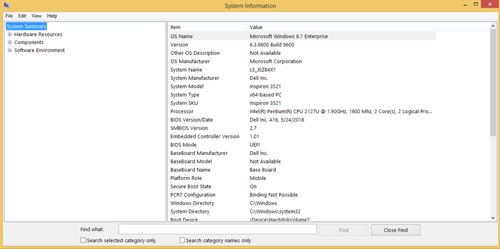
To effectively understand your computer, one important aspect is the System Information tool. The System Information tool provides detailed information about your computer's hardware, software, and system configuration. This tool is useful for troubleshooting issues, checking system specifications, and managing resources.
Steps to Navigate to System Information in Windows
To access System Information in Windows:
Using Run Dialog:
Press Windows + R to open the Run dialog.
Type msinfo32 and press Enter. This opens the System Information window, showing details about your hardware and software.
Using SearchBar:
Click the Windows Start button and search for system information
Click on the System Information app from the search results.
Explore sections like System Summary, Hardware Resources, and Components for detailed information about your computer.

Windows explorer provides a way to organize your files and folders. Every time you open, say, your Documents folder or the photos folder, that’s an instance of Windows Explorer. The tool’s fundamental purpose is to let you view, open, copy, move, and otherwise manage your files and folders.

Note: Don’t confuse windows or file explorer with Microsoft windows explorer which is used for web browsing or to go online/internet.
How to open Windows Explorer
There are several ways to open a new Explorer window, which vary slightly depending on which version of Windows you are running.
In all versions of Windows, Press Windows key+E (hold down the Windows key and press E). Click Start and select Run (or press Windows key + R), then type explorer or explorer.exe and press Enter.
In Windows 10, Press the Windows key+X to open the Power User Tasks Menu, then select File Explorer (or press E). Click Start, select Programs, select Accessories, then Windows Explorer or Explorer.
Things you can do in Windows/File explorer
Windows or File explorer is used for organizing files and folders. You can create a folder, save file in the folder. Rename, delete or move a file. You can also search for a folder.
Tip: Always organize your files and folders according to their relevance.
Folder
A folder, also called a directory, is a space used to store files, other folders, and shortcuts on a computer. A good analogy is the manila folders seen in an office to store papers or reports. When browsing computer files using a file manager, such as Windows Explorer, the icon for a folder should look similar to the image.
How are files different than a folder?
A folder is an area on the computer that contains other folders and files and helps keep the computer organized. Files can be contained within a folder and contain information used by the operating system or other programs on the computer. Folders don’t have an extension but every file has an extension for e.g. MS-word files have an extension of .doc or docx. MS-Excel files have an extension of .xls or xlsx.
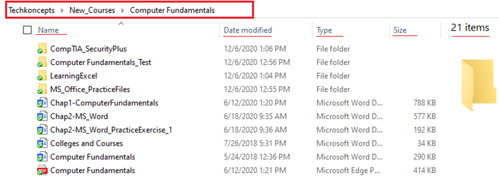
Every folder and file have a name, date modified, type and size.
It has a path (also called address bar) too (highlighted in red) which displays the location or address of the folder/file. Path helps you in locating your files.
You can also see the number of files in a folder.

Default Drives and Folders in Windows/file explorer
Windows provides you with some default drives and folder. C:/ drive or D drive is your main drive on your laptop and everything resides in these drives.
They are usually depicted as shown below:
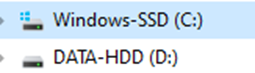

This display may slightly differ depending on your organization. Your organization may have many other drives too such as dropbox, one drive or any other shared or network drives.
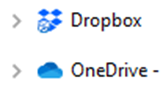
Figure 1.13: Default Drives
Default folders
Windows/file explorer have the following default folders.
Quick access. This folder keeps all the frequently used files and folders.
Desktop. This is your desktop folder. All files and folders present in your desktop (first screen when you switch on your computer) is present here.
Documents. This is the default location of all the documents created.
Downloads. This is the default location of any download you perform from the internet.
Music. This is the default location to store all the music files.
Pictures. This is the default location to store all the pictures.
Videos. This is the default location to store all the videos.
Tip: These are just the default folders but you can keep your files in any folder according to your preference.
How to open a folder
Navigate to your desired folder and double-click it to open it. It will display all the contained sub-folders and files.
To open a file, double-click on the file. The file in open in its default application. For e.g. if you double click on a word file, it will open in MS-word application.
How to create a directory or folder
Follow the below steps to create a folder.
Open Windows explorer
Open the drive or folder where you'd like to create the new folder; for example, the C: drive. If you do not want to create a folder in the root directory, browse to the location of your choosing.
In Windows 10 on the Home tab, click the New folder icon.
You can also right-click with your mouse on a blank portion of the folder, select New and then Folder.
How to delete a folder
To delete a folder, right-click on the folder and select delete from the menu. You can also delete by selecting a folder and hitting delete key on your keyboard.
Remember:
Deleting a folder will delete all files and folders underneath it. If a file is open on your system, it cannot be deleted.
Simply deleting a file or folder will move it to recycle bin folder from which it can be retrieved.
To permanently delete a file press Shift + delete on your keyboard.
The Command Prompt is a powerful text-based interface in Windows that allows users to execute commands to perform various tasks. It’s particularly useful for advanced users and system administrators.
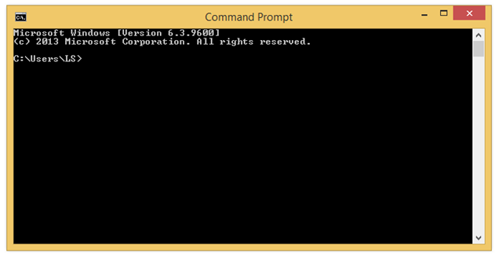
Figure 1.14: Command Prompt
Key Features
Direct Access: You can run commands directly without clicking through menus, making tasks faster and easier.
Batch Processing: You can create a file that runs several commands in order. This saves time on repetitive tasks and makes it easy to automate things.
System Administration: Perform advanced tasks such as network configuration, file management, and system diagnostics.
Common Commands
dir: Lists all files and folders in the current directory, helping you see what's available.
cd: Changes the current directory, allowing you to navigate to different folders on your computer.
copy: Copies files from one location to another, making it easy to duplicate documents or data.
ping: Tests the network connection to another computer or server, helping you check if a device is reachable.
ipconfig: Displays your network configuration details, including IP address and connection status.
How to Access Command Prompt
Press Windows + R, type cmd, and hit Enter.
Alternatively, search for "Command Prompt" in the Start menu.
Data management involves storing, organizing, and accessing information. Key elements include:
Databases
Think of a database like a digital library. In this library, you have a collection of books (data) organized in a way that makes it easy to find what you’re looking for. You can quickly search for a book by title, author, or genre. Just like a library keeps track of all its books and can easily update or add new ones, a database allows you to store, access, and manage data efficiently.
A library database might store information about each book: title, author, genre, and year published. When you want to find a book, you can quickly search the database.
Data Structures
Now, let’s think about how those books are actually arranged on the shelves. This is where data structures come in. A data structure is like the method you use to organize those books to make it easy to find and change them.
If the books are organized alphabetically by title, that’s one data structure. If they’re organized by genre, that’s another. If the library uses a special catalog card system that links books to their locations on the shelves, that’s yet another way of structuring the data.
Putting It All Together
So, in our library analogy:
The database is the entire library that holds all the information about the books.
The data structures are the different ways that information can be organized (like by title or genre) to help you find and manage the books more easily.
In summary, a database is a collection of data, while data structures are the ways that data is organized within that collection.
Understanding Networks
Networking allows computers to communicate and share resources. Key concepts include:
LAN (Local Area Network): A network that connects computers within a limited area, such as a home or office.

WAN (Wide Area Network): A network that spans a large geographic area, often connecting multiple LANs.

Basic Networking Devices
Essential networking devices include:
Router: Connects multiple networks and directs data between them, allowing different networks to communicate and access the internet.
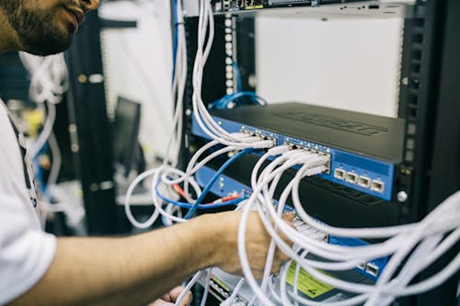

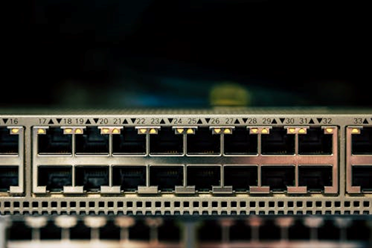
Switch: Connects devices within a single network, enabling them to communicate with each other efficiently by forwarding data to the appropriate destination.

Common Cyber Threats
Understanding cybersecurity is crucial in protecting personal information. Common threats include:
Viruses: Malicious software designed to infect and damage files on a computer, often spreading from one system to another.
Phishing: Fraudulent attempts to acquire sensitive information, such as passwords or credit card details, by posing as a trustworthy entity through emails or websites.
Ransomware: A type of malware that encrypts files and demands payment for their release.
Best Practices for Security
Implementing basic security measures can help protect your data:
Use strong, unique passwords.
Regularly update software and operating systems.
Be cautious with email attachments and links.
The internet is a global network that connects millions of devices. Key concepts include:
IP Addresses: Unique numerical identifiers assigned to each device on a network, allowing them to communicate with one another.
Domain Names: Human-readable addresses (like www.example.com) that correspond to IP addresses, making it easier for users to access websites without remembering numerical values.
Web Browsers and Search Engines
Understanding how to navigate the web using browsers (like Chrome or Firefox) and search engines (like Google) is essential for accessing
Importance of Digital Citizenship
As technology becomes more integrated into our lives, being a responsible digital citizen is crucial. Key aspects include:
Online Safety: Understanding how to protect personal information online.
Respecting Intellectual Property: Understanding the importance of copyrights and fair use to ensure the rights of creators are honored.
Social Media Responsibility: Being mindful of what you post and how it can affect others.

In today’s digital world, it’s important to understand the basics of computers. Whether you’re a student, a professional, or just interested in technology, knowing these fundamentals can boost your skills and confidence. In this course, we’ll explore key areas of computer fundamentals to help you build a solid foundation.
This introductory course will give insights on:
What is a Computer
Computer Hardware
Computer Software
Operating Systems
Memory
Input Devices
Know Your Computer
Windows File explorer or Windows explorer
Command Prompt
Data Management
Cybersecurity Basics
Internet
Digital Citizenship